
1. Introduction
WordPress powers a huge share of the websites you visit every day, which is exactly why it’s such an attractive target. Attackers don’t usually target you specifically — they run automated scanners that sweep millions of sites looking for the same handful of mistakes over and over: a weak password here, an outdated plugin there, a wide-open wp-config.php file somewhere else. Most hacked WordPress sites weren’t hacked because someone broke brilliant defenses. They were hacked because a routine, well-documented mistake was left unfixed.
This guide walks through more than 30 of those mistakes, organized by category — login, updates, plugins, themes, hosting, server configuration, database, backups, and malware prevention. For each one, you’ll get a plain-English explanation of what the mistake actually is, why it matters, how attackers exploit it in practice, warning signs to watch for, and a concrete step-by-step fix.
This isn’t a scare piece. It’s a working reference. Bookmark it, use the checklist, and come back to it whenever you add a new plugin, switch hosts, or onboard a new site to your agency’s care.
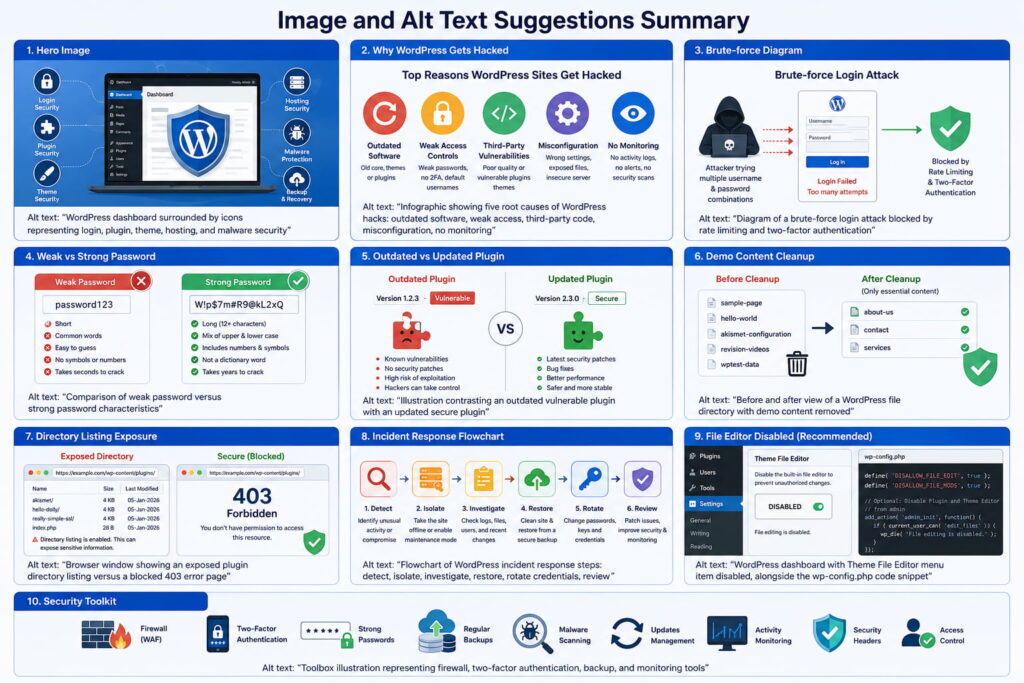
IMAGE IDEA: A hero graphic showing a WordPress dashboard silhouette surrounded by icon clusters representing the main threat categories covered in the article — a padlock (login), a puzzle piece (plugins), a paintbrush (themes), a server rack (hosting), and a shield (malware) — arranged around a central WordPress logo.
2. Why WordPress Websites Get Hacked
Before diving into individual mistakes, it helps to understand the general patterns behind WordPress compromises. Almost every hack traces back to one of these root causes:
1. Outdated software. WordPress core, themes, and plugins all receive security patches. Every day a vulnerable version stays installed is a day it’s exposed to publicly known exploits — and once a vulnerability is patched, the patch notes themselves often tell attackers exactly what to look for in unpatched sites.
2. Weak access controls. Reused passwords, no two-factor authentication, and overly generous user permissions all give attackers a low-effort path in. A brute-force bot doesn’t need to be clever if the site owner’s password is Summer2024!.
3. Poorly vetted third-party code. Plugins and themes — especially free ones from unofficial sources, or premium ones downloaded from “nulled” sites — are a common entry point. A plugin doesn’t need to be malicious to be dangerous; it just needs to be carelessly coded.
4. Server and hosting misconfiguration. Incorrect file permissions, disabled security headers, and shared hosting environments where one compromised neighbor can affect others all widen the attack surface.
5. No monitoring or backups. Many site owners only discover they’ve been hacked when Google flags their site or a customer complains. Without monitoring, an infection can sit for months, and without backups, recovery becomes a rebuild from scratch.
The good news: nearly all of these root causes are preventable with routine habits, not exotic technical skill. That’s the whole premise of this article.
IMAGE IDEA: A simple pie chart or icon-based infographic showing the five root-cause categories above, labeled clearly, to give readers a mental model before they dive into specifics.
3. Understanding WordPress Security (The Basics You Need First)
WordPress security isn’t a single setting you flip on. It’s the sum of decisions made across five layers:
- The WordPress application layer — core software, themes, and plugins.
- The access layer — who can log in, and how easily.
- The server layer — the operating system, PHP configuration, and file permissions underneath WordPress.
- The hosting layer — the infrastructure and isolation your host provides.
- The data layer — your database and your backups.
A mistake in any one layer can undermine strong defenses in the others. A hardened wp-config.php won’t help if your hosting account password is on a breach list. A great backup routine won’t save you if you never test whether the backups actually restore. This layered view is why the rest of this guide is organized by category — each section hardens one layer, and by the end you’ll have addressed all five.
One more mental model worth adopting: think of WordPress security the way you’d think of home security. You don’t rely on one lock. You combine a strong front door lock (login security), an alarm system (monitoring), a safe for valuables (backups and database protection), and awareness of who has spare keys (user roles and third-party plugins). No single layer needs to be unbreakable — they need to work together.
4. Login Security Mistakes
Your login page is the single most attacked URL on your entire site. It’s public, predictable (/wp-login.php or /wp-admin), and directly connects to the keys of the kingdom. These five mistakes are the ones automated attack bots probe for first.
Mistake 1: Using Weak or Reused Passwords
What is this mistake? Using short, guessable, or dictionary-based passwords — or reusing a password from another account — on your WordPress admin login.
Why is it dangerous? Weak passwords fall to automated guessing in minutes. Reused passwords fall the moment any other service you use suffers a data breach, since attackers test leaked credentials against thousands of sites automatically (a technique called credential stuffing).
How attackers exploit it Bots run lists of common passwords and known breached credentials against your login form, often at low speed to avoid triggering basic rate limits.
Real-world example A small business owner uses the same password for their WordPress admin account and an online forum account. The forum is breached, the credentials leak, and within days automated bots have tried (and succeeded with) that same password on thousands of WordPress sites, including the business owner’s.
Warning signs Repeated failed login attempts in your logs, login notifications from unfamiliar locations, or a password you can type from memory in under two seconds.
Step-by-step solution
- Generate a unique, random password of at least 16 characters using a password manager (1Password, Bitwarden).
- Never reuse it anywhere else.
- Update it immediately for every admin-level account on the site.
- Enforce strong passwords for all users via a plugin or custom policy.
Best practices Use a password manager for every account, not just WordPress. Rotate credentials after any suspected breach — yours or a service you use.
Pro Tip Check whether a password has appeared in known breaches using a reputable breach-check service before adopting it, rather than after.
Common misconceptions “My site is too small to be targeted” — attack bots don’t check site size before trying; they attack indiscriminately at scale.
Final takeaway A strong, unique password is the cheapest, fastest security upgrade you can make today, and it closes the door on the most common attack vector outright.
Mistake 2: Skipping Two-Factor Authentication (2FA)
What is this mistake? Relying on a password alone to protect admin access, with no second verification step.
Why is it dangerous? Even a strong password can be phished, keylogged, or leaked. Without 2FA, a stolen password is immediately usable.
How attackers exploit it Phishing emails mimicking WordPress or hosting notifications trick admins into entering credentials on fake login pages. Without 2FA, those stolen credentials work instantly.
Real-world example An agency employee receives a convincing “your WordPress site needs a security update” email with a fake login link. They enter their credentials. Because 2FA isn’t enabled, the attacker logs in directly — no further barrier.
Warning signs Login activity at odd hours, new admin users you didn’t create, or a “password reset” email you didn’t request.
Step-by-step solution
- Install a reputable 2FA plugin (e.g., WordPress-native support via an authenticator plugin).
- Enable it for every user with Administrator or Editor access at minimum.
- Use an authenticator app (TOTP) rather than SMS where possible, since SMS can be intercepted via SIM-swapping.
- Require 2FA enrollment before granting new accounts full access.
Best practices Make 2FA mandatory account-wide, not optional per user — optional security is security people skip.
Pro Tip Keep printed backup codes somewhere secure in case you lose access to your authenticator device.
Common misconceptions “2FA is only for high-value targets” — credential stuffing bots don’t discriminate; 2FA stops nearly all of them cold regardless of site size.
Final takeaway 2FA turns a single point of failure (your password) into two, and that second layer blocks the overwhelming majority of automated login attacks.
Mistake 3: Using “admin” as a Username
What is this mistake? Keeping the default or an obvious username like admin, administrator, or your site name for your top-level account.
Why is it dangerous? Brute-force attacks need to guess both a username and password. A predictable username removes half the puzzle for attackers.
How attackers exploit it Automated tools pair the username admin with thousands of common passwords in rapid succession, since it’s still one of the most-used WordPress usernames globally.
Real-world example A blogger installs WordPress and never changes the default admin username shown during setup. A bot targeting that exact username eventually matches it with a leaked password variant.
Warning signs Your login logs show repeated attempts specifically against the username admin.
Step-by-step solution
- Create a new Administrator account with a unique, non-obvious username.
- Reassign all content authored by the old account to the new one.
- Delete the old
adminaccount. - Avoid displaying usernames publicly as post author names — use a display name instead.
Best practices Treat your username with the same secrecy as your password where practical; at minimum, never make it guessable from your public site.
Pro Tip Check your author archive URLs (e.g., ?author=1) — WordPress can leak usernames this way even if your login username looks obscure.
Common misconceptions “Changing the username doesn’t matter if the password is strong” — it doesn’t replace a strong password, but it removes an easy shortcut for attackers and meaningfully slows automated guessing.
Final takeaway A non-obvious username costs nothing and quietly removes your site from the easiest tier of brute-force targets.
Mistake 4: No Login Attempt Limiting
What is this mistake? Allowing unlimited login attempts on wp-login.php with no lockout, delay, or rate limiting.
Why is it dangerous? Without limits, attackers can attempt thousands of password guesses per hour against your login form, uninterrupted.
How attackers exploit it Brute-force and credential-stuffing tools automate rapid, repeated login attempts, cycling through password lists until one succeeds.
Real-world example A WooCommerce store’s login page has no rate limiting. A bot runs 50,000 password attempts overnight; the store owner discovers unauthorized orders and a defaced homepage the next morning.
Warning signs Unusually high server load overnight, a flood of failed login entries in logs, or hosting provider warnings about suspicious traffic.
Step-by-step solution
- Install a login-limiting plugin or enable the feature in your firewall plugin.
- Set a lockout after 3–5 failed attempts, with an escalating delay.
- Rename or restrict access to
wp-login.phpwhere feasible (via.htaccessor firewall rule). - Log and review lockout events periodically.
Best practices Combine attempt limiting with 2FA and strong passwords for layered protection — no single control should be your only defense.
Pro Tip Some firewall plugins can block an IP network-wide after repeated failures across any site they protect, stopping known bad actors before they even reach you.
Common misconceptions “Rate limiting will lock out real users too often” — reasonable thresholds (3–5 attempts, escalating delays) rarely affect legitimate users who simply mistype a password once or twice.
Final takeaway Rate limiting doesn’t need to be exotic — even a basic lockout policy eliminates the brute-force method entirely.
Mistake 5: Ignoring Suspicious Login Activity
What is this mistake? Never reviewing login logs, failed attempt counts, or new-user notifications, so a compromise goes unnoticed for weeks or months.
Why is it dangerous? Attackers who gain access often prefer to stay quiet — creating hidden backdoors, siphoning data, or injecting spam links slowly rather than immediately defacing the site. Without monitoring, this can continue indefinitely.
How attackers exploit it After a successful login, attackers create a secondary hidden admin account or install a backdoor plugin, ensuring continued access even if the original compromised password is changed.
Real-world example A site owner changes their password after noticing slow performance but never checks the user list. A hidden admin account created weeks earlier remains active, and the attacker regains full access days later.
Warning signs Unfamiliar admin accounts, login timestamps that don’t match your activity, or emails about password changes you didn’t request.
Step-by-step solution
- Enable login and activity logging via a security plugin.
- Review the user list monthly for unfamiliar accounts.
- Set up email or dashboard alerts for new admin account creation.
- Audit login history after any suspected incident, not just after obvious damage appears.
Best practices Treat log review as a routine maintenance task, like checking backups — scheduled, not reactive.
Pro Tip Export logs periodically to storage outside your WordPress install, since an attacker with admin access can delete logs stored only within WordPress itself.
Common misconceptions “No visible damage means no breach” — many compromises are designed specifically to stay invisible while they extract value.
Final takeaway Monitoring turns a silent, long-term compromise into a short, contained incident you catch early.
IMAGE IDEA: Diagram showing a brute-force attack attempting multiple login combinations against wp-login.php, blocked by rate limiting and two-factor authentication.
Comparison Table: Weak Password vs. Strong Password
| Attribute | Weak Password | Strong Password |
|---|---|---|
| Length | Under 8 characters | 16+ characters |
| Composition | Dictionary word or name | Random mix of letters, numbers, symbols |
| Reuse | Used across multiple sites | Unique to this account |
| Crack time (approx.) | Seconds to minutes | Centuries with current techniques |
| Storage | Memorized or written down | Stored in a password manager |
5. Update & Maintenance Mistakes
Updates are the least glamorous part of WordPress ownership — and the most important. Most successful WordPress hacks target known, already-patched vulnerabilities on sites that simply never updated.
Mistake 6: Delaying WordPress Core Updates
What is this mistake? Postponing or ignoring WordPress core update notifications, sometimes for months.
Why is it dangerous? When WordPress releases a security update, the changelog effectively publishes what was broken — giving attackers a roadmap to target every site that hasn’t updated yet.
How attackers exploit it Automated scanners fingerprint your WordPress version from public page source and target it with exploits matching known vulnerabilities for that version.
Real-world example A core vulnerability affecting a specific version range is patched. A site running an older version delays updating for six weeks; during that window, a scanner identifies the outdated version and exploits it to inject a redirect malware script.
Warning signs An update notification badge in your dashboard that’s been ignored for weeks, or a WordPress version several releases behind current.
Step-by-step solution
- Enable automatic updates for minor/security releases (on by default in modern WordPress).
- Schedule a monthly window to review and apply major updates after testing on staging.
- Subscribe to the official WordPress security release notifications.
- If running an older major version, prioritize updating within days, not months.
Best practices Always test major updates on a staging copy first if your site has custom code, but don’t let “testing” become an excuse for indefinite delay — security releases should be fast-tracked regardless.
Pro Tip Security releases are often backported to older major versions specifically so upgrading is low-risk — check release notes before assuming an update requires a full compatibility overhaul.
Common misconceptions “If it’s not broken, don’t update it” — in security, “not broken” often just means “not yet exploited.”
Final takeaway Treat core updates as non-negotiable maintenance, not optional housekeeping.
Mistake 7: Running Outdated PHP Versions
What is this mistake? Hosting your site on an end-of-life PHP version that no longer receives security patches.
Why is it dangerous? Unsupported PHP versions accumulate unpatched vulnerabilities at the server language level — beneath WordPress itself — which no WordPress-level plugin can fix.
How attackers exploit it Exploits targeting PHP-level vulnerabilities can bypass WordPress-specific defenses entirely, since they operate at a lower layer of the stack.
Real-world example A site continues running a PHP version past its official end-of-life date because “everything still works.” A vulnerability in that PHP version, never patched because support ended, is later used as part of a broader exploit chain.
Warning signs Your hosting dashboard or a plugin like Site Health flags your PHP version as outdated or unsupported.
Step-by-step solution
- Check your current PHP version in WordPress under Tools → Site Health.
- Confirm the currently supported PHP versions via the official PHP.net supported versions page.
- Request a PHP version upgrade through your hosting control panel.
- Test your site thoroughly after upgrading, since older plugins/themes can occasionally have compatibility issues.
Best practices Keep PHP one version behind the absolute latest if you want extra compatibility assurance, but never fall into an unsupported version.
Pro Tip Most reputable hosts let you switch PHP versions with one click — there’s rarely a good reason to stay on an unsupported version for long.
Common misconceptions “PHP updates are a hosting problem, not my problem” — as the site owner, you’re responsible for requesting and verifying the upgrade even if your host provides the tooling.
Final takeaway An outdated PHP version undermines every other security measure you’ve taken at the WordPress layer.
Mistake 8: No Staging Environment for Testing Updates
What is this mistake? Applying every update directly to the live production site with no safe environment to test first.
Why is it dangerous? Fear of an update “breaking something” is one of the most common reasons site owners delay critical security patches — a staging environment removes that fear entirely.
How attackers exploit it Indirectly: delayed updates caused by update-anxiety leave known vulnerabilities exposed for longer than necessary.
Real-world example An agency avoids updating a client’s plugin for months, worried it might conflict with custom code, until a scanner exploits the known vulnerability in the outdated version.
Warning signs A pattern of postponed updates specifically because “we’re not sure it’s safe to update.”
Step-by-step solution
- Set up a staging clone of your site (many hosts offer one-click staging).
- Apply updates to staging first and verify the site still functions correctly.
- Push validated updates to production promptly — ideally within 24–72 hours for security releases.
- Document any plugin/theme conflicts found so future updates account for them.
Best practices Keep staging environments password-protected and excluded from search engines, since they’re often less hardened than production.
Pro Tip Automate the staging-to-production update workflow with your host’s tools where available to reduce the friction that causes delays.
Common misconceptions “Staging is only for big enterprise sites” — even a one-click staging clone on budget hosting removes most of the risk that causes update procrastination.
Final takeaway A staging environment turns “I’m afraid to update” into “I can update confidently,” directly closing the delay gap attackers rely on.
Mistake 9: Leaving Inactive Themes and Plugins Installed
What is this mistake? Keeping deactivated plugins or unused themes installed on the site “just in case,” rather than deleting them.
Why is it dangerous? An inactive plugin still has its files on your server. If it contains a vulnerability, attackers can often exploit it directly by accessing its files, without needing it to be “active” in the WordPress sense.
How attackers exploit it Scanners probe known file paths of popular plugins regardless of activation status, executing exploits directly against vulnerable files still sitting on disk.
Real-world example A site owner deactivates a page builder plugin after switching themes but never deletes it. Months later, a known vulnerability in that plugin is exploited directly via its still-present files, even though it shows as “inactive” in the dashboard.
Warning signs A plugins list containing tools you haven’t used in months, or unfamiliar theme folders visible in your file manager.
Step-by-step solution
- Audit your Plugins and Appearance → Themes screens for anything inactive.
- Confirm you don’t need it (check for shortcodes/dependencies in your content first).
- Delete inactive plugins and themes entirely rather than just deactivating them.
- Repeat this audit quarterly.
Best practices Keep only one active theme and its required parent theme (if using a child theme); delete all others.
Pro Tip Before deleting, export the plugin’s settings if you might reuse it later, since deletion often removes its configuration data too.
Common misconceptions “Deactivated means safe” — deactivation stops the plugin from running, but its files remain directly accessible unless deleted.
Final takeaway If you’re not using it, delete it — every unused file is unmonitored attack surface.
6. Plugin Security Mistakes
Plugins are the single largest source of WordPress vulnerabilities industry-wide, simply because there are so many of them, written by so many different developers with varying security practices.
Mistake 10: Installing Plugins from Untrusted Sources
What is this mistake? Downloading plugins from unofficial marketplaces, “nulled” plugin sites, or random third-party download links instead of the official WordPress.org repository or verified premium vendors.
Why is it dangerous? Pirated (“nulled”) premium plugins are a well-known distribution method for backdoored code — attackers inject malicious functions directly into cracked versions before redistributing them.
How attackers exploit it The malicious code is bundled directly into the plugin itself, often creating a hidden backdoor the moment it’s activated — no separate “attack” is even needed.
Real-world example A store owner downloads a cracked version of a premium plugin to avoid the license fee. The plugin works normally but silently creates a hidden admin account in the background, giving the distributor permanent access.
Warning signs Unexplained outbound traffic, unfamiliar admin accounts, or a plugin sourced from a site other than WordPress.org or the official vendor.
Step-by-step solution
- Immediately remove any plugin sourced from an unofficial or “nulled” site.
- Scan the site thoroughly for backdoors after removal (see Malware Prevention section).
- Replace it with the legitimately licensed version from the official vendor or WordPress.org.
- Change all passwords and API keys, since a backdoor may have exposed them.
Best practices Only install plugins from WordPress.org, or purchase directly from the developer’s official site/marketplace (CodeCanyon, official vendor stores).
Pro Tip If a “premium” plugin’s price seems too good to be true, treat that as a direct signal it may be compromised, not a bargain.
Common misconceptions “I’ve used it for months with no issues, so it must be clean” — backdoors are often designed to stay dormant or undetectable until activated for a specific purpose.
Final takeaway The money saved on a pirated plugin is trivial compared to the cost of a full site compromise — always pay for or source plugins legitimately.
Mistake 11: Ignoring Plugin Vulnerability Disclosures
What is this mistake? Not tracking whether plugins you use have publicly disclosed vulnerabilities, and continuing to run known-vulnerable versions.
Why is it dangerous? Vulnerability databases publish detailed technical information about plugin flaws, which attackers use as a direct target list against sites that haven’t updated.
How attackers exploit it Automated scanners cross-reference your site’s detectable plugin versions against public vulnerability databases and launch exploits matching any hits.
Real-world example A vulnerability is disclosed in a popular form plugin, allowing unauthenticated file uploads. A site running the vulnerable version is compromised within days of the disclosure, before the owner applies the available patch.
Warning signs A plugin update available for weeks with a changelog mentioning “security fix” that hasn’t been applied.
Step-by-step solution
- Use a vulnerability-monitoring plugin or service (such as Patchstack or WPScan’s database) to get alerts for your installed plugins.
- Prioritize applying any update labeled as a security fix within 24–48 hours.
- If a patch isn’t yet available for a disclosed vulnerability, temporarily deactivate the affected plugin.
- Subscribe to your plugin vendors’ security mailing lists where available.
Best practices Treat “security fix” changelog entries as top priority, ahead of feature updates.
Pro Tip A web application firewall (WAF) can often virtually patch a known vulnerability, blocking exploit attempts even before you’ve applied the official fix.
Common misconceptions “I’ll update during my next scheduled maintenance window” — security fixes for actively-exploited vulnerabilities need to be treated as urgent, not routine.
Final takeaway Vulnerability disclosures are a race between you and every scanner on the internet — treat them with urgency.
Mistake 12: Granting Excessive Plugin Permissions
What is this mistake? Installing plugins that request broad file system, database, or API access without evaluating whether that access is actually necessary for their function.
Why is it dangerous? A vulnerable or malicious plugin with broad permissions can affect far more of your site than its stated purpose would suggest — a simple contact form plugin shouldn’t need full database write access, for instance.
How attackers exploit it If the plugin itself is compromised (via vulnerability or supply-chain attack), the attacker inherits whatever access the plugin was granted.
Real-world example A seemingly simple analytics plugin requests broad file-editing capabilities. When the plugin’s update server is compromised in a supply-chain attack, the malicious update uses that pre-existing access to modify core site files.
Warning signs A plugin’s requested capabilities seem disproportionate to its described function.
Step-by-step solution
- Review plugin permissions/capabilities before installing, where the vendor documents them.
- Prefer plugins with a narrow, well-defined scope over “all-in-one” tools that request broad access.
- Periodically audit installed plugins against their actual necessity.
- Remove plugins providing capabilities you no longer use.
Best practices Favor specialized, single-purpose plugins from reputable developers over bloated multi-tool plugins where possible.
Pro Tip Fewer plugins generally means a smaller attack surface — consolidate functionality only when it doesn’t sacrifice code quality or maintenance activity.
Common misconceptions “More features means better value” — every additional capability a plugin holds is additional risk if that plugin is ever compromised.
Final takeaway Match plugin permissions to actual need — unnecessary access is unnecessary risk.
Mistake 13: Using Abandoned or Unmaintained Plugins
What is this mistake? Continuing to run a plugin that hasn’t been updated in years and shows no sign of active development.
Why is it dangerous? Abandoned plugins won’t receive security patches even after vulnerabilities are discovered and publicly disclosed — they remain permanently exploitable.
How attackers exploit it Once a vulnerability in an abandoned plugin is disclosed, it stays exploitable indefinitely on every site still running it, since no fix will ever be released.
Real-world example A site continues using a gallery plugin last updated several years ago. A vulnerability is later disclosed in it; because the developer has abandoned the project, no patch is ever released, leaving every site using it permanently exposed.
Warning signs The WordPress.org plugin page shows “not tested with the last 3 major WordPress releases” or a last-updated date of years ago.
Step-by-step solution
- Check the “Last updated” and “Tested up to” fields on the plugin’s WordPress.org page.
- Search for actively maintained alternatives offering similar functionality.
- Migrate away from the abandoned plugin, testing thoroughly on staging first.
- Remove the old plugin completely once migration is verified.
Best practices Before installing any new plugin, check its maintenance history as part of your evaluation — not just its feature set and reviews.
Pro Tip WordPress.org now displays compatibility warnings for plugins not updated recently — don’t ignore these badges.
Common misconceptions “It still works fine, so it’s still safe” — functional compatibility and security maintenance are two separate things; a plugin can keep working while quietly accumulating unpatched risk.
Final takeaway Active maintenance is a security feature in itself — treat plugin abandonment as a migration trigger, not a reason for complacency.
IMAGE IDEA: Split illustration contrasting an “Outdated Plugin” (skull icon, red warning badge, last updated 3 years ago) against an “Updated Plugin” (green checkmark, shield icon, updated this month).
Comparison Table: Outdated Plugin vs. Updated Plugin
| Attribute | Outdated Plugin | Updated Plugin |
|---|---|---|
| Security patches | None (if abandoned) | Regularly applied |
| Compatibility | Often breaks with new WP versions | Tested with current releases |
| Vulnerability exposure | Publicly known, unpatched | Patched promptly |
| Support | Unresponsive or absent | Active developer support |
| Risk level | High | Low (if properly maintained) |
7. Theme Security Mistakes
Themes get less scrutiny than plugins, but they run with the same level of access — and mistakes here are just as costly.
Mistake 14: Using Nulled or Pirated Themes
What is this mistake? Downloading premium themes from unofficial “free download” sites instead of purchasing them legitimately.
Why is it dangerous? Like nulled plugins, pirated themes are a common vector for pre-installed backdoors and malware, often hidden deep inside template files where they’re hard to spot.
How attackers exploit it Malicious code embedded in the theme’s files executes automatically once the theme is activated, frequently creating hidden backdoors or injecting spam content.
Real-world example A freelancer installs a nulled version of a popular premium theme for a client project to save on licensing costs. Months later, the client’s site starts injecting hidden spam links into every page — traced back to obfuscated code buried in the theme’s footer template.
Warning signs Unexpected content appearing on pages, unusual outbound links in page source, or a theme sourced from anywhere other than the official developer or ThemeForest-style marketplaces.
Step-by-step solution
- Replace any nulled theme immediately with a legitimately purchased copy.
- Scan all theme files for injected/obfuscated code before and after replacement.
- Check the database for injected content the malicious theme may have inserted.
- Change all credentials as a precaution.
Best practices Only purchase themes from the official WordPress.org repository, the developer’s own site, or reputable marketplaces.
Pro Tip Legitimate premium themes typically include ongoing update access as part of the license — a “free” copy that never updates is a red flag in itself.
Common misconceptions “It looks and functions exactly like the real thing” — visual and functional similarity says nothing about what’s hidden in the code.
Final takeaway A pirated theme is a direct, self-installed backdoor — never worth the money “saved.”
Mistake 15: Editing Theme Files Directly Without a Child Theme
What is this mistake? Making custom code changes directly in a parent theme’s files rather than using a child theme.
Why is it dangerous? While not a security vulnerability by itself, this habit often leads site owners to disable auto-updates or delay theme updates indefinitely to avoid losing their custom edits — which reintroduces every risk covered in the Update Mistakes section.
How attackers exploit it Indirectly, by exploiting the vulnerabilities that accumulate in the outdated parent theme the owner refuses to update.
Real-world example A developer adds custom CSS and PHP functions directly into a client’s active theme files. When a theme security update becomes available, the client avoids applying it, fearing it will overwrite the custom work — leaving a known vulnerability unpatched for months.
Warning signs A theme that hasn’t been updated in a long time specifically because “we have customizations in there.”
Step-by-step solution
- Create a child theme and migrate all custom code into it.
- Restore the parent theme to its unmodified, official state.
- Resume normal update practices for the parent theme.
- Document custom functionality in the child theme for future maintainers.
Best practices Always use a child theme (or a custom plugin for functions) for any site-specific customization from day one.
Pro Tip Custom functionality unrelated to visual styling is often better placed in a small custom “must-use” plugin, which survives even a theme switch entirely.
Common misconceptions “Child themes are only necessary for major coding projects” — even a few lines of custom CSS benefit from this separation.
Final takeaway Child themes remove the false choice between “keep my customizations” and “stay updated” — you can have both.
Mistake 16: Not Removing Demo Content and Default Theme Files
What is this mistake? Leaving default theme demo content, sample import files, or example templates active on a live production site.
Why is it dangerous? Demo import scripts and sample files are sometimes overlooked by developers when it comes to security review, since they’re not intended for production use — but they remain accessible if not removed.
How attackers exploit it Scanners specifically check for known demo/sample file paths bundled with popular themes, which can sometimes expose unintended functionality or information.
Real-world example A theme’s demo-import functionality is left accessible on a live site rather than being removed after setup. A scanner discovers the associated file, which exposes more site information than intended.
Warning signs Demo content, sample pages, or “Get Started” import tools still visible and unremoved months after site launch.
Step-by-step solution
- Remove all demo/sample content after initial site setup is complete.
- Delete any theme-specific import or setup scripts once used.
- Check theme documentation for any “for development only” files that should not remain in production.
- Confirm removal doesn’t break any live functionality first via staging.
Best practices Treat theme setup as a two-phase process: import/configure, then clean up before going live.
Pro Tip Search your file structure for folders literally named “demo,” “sample,” or “example” as a quick manual audit.
Common misconceptions “Demo content is harmless since it’s not the real site content” — the risk isn’t the content itself, but the unaudited functionality that sometimes accompanies it.
Final takeaway Clean up after setup — leftover demo tooling is unnecessary surface area with no ongoing benefit.
IMAGE IDEA: Before/after illustration: a cluttered WordPress file directory full of “demo,” “sample,” and “example” folders on the left, cleaned up to only essential production files on the right.
8. Hosting Security Mistakes
Your hosting environment is the foundation everything else sits on. A misconfigured or poorly chosen host can undermine even a perfectly hardened WordPress install.
Mistake 17: Choosing Hosting Based on Price Alone
What is this mistake? Selecting the cheapest available hosting plan without evaluating its security practices, isolation model, or support quality.
Why is it dangerous? Ultra-budget shared hosting sometimes cuts corners on account isolation, meaning a vulnerability or compromise on a neighboring site can potentially spread to yours on the same server.
How attackers exploit it On poorly isolated shared hosting, a compromised neighboring account can be used to pivot into other accounts on the same server through shared resources or misconfigured permissions.
Real-world example A business owner selects the cheapest available shared hosting plan. A completely unrelated site on the same server is compromised; because the host’s account isolation is weak, the infection spreads to the business owner’s site as well, despite their own WordPress install having been fully up to date.
Warning signs A host offering unusually low prices with no clear documentation of security practices, account isolation, or malware scanning.
Step-by-step solution
- Research your host’s isolation model (look for terms like “account isolation,” “containerized hosting”).
- Check whether the host offers free malware scanning, firewalls, and automatic backups.
- Read independent reviews focused specifically on security incidents, not just uptime or speed.
- Consider managed WordPress hosting if budget allows, since it typically includes WordPress-specific hardening by default.
Best practices Balance cost against the host’s demonstrated security track record — the cheapest plan is rarely the best value once a compromise is factored in.
Pro Tip Ask prospective hosts directly what happens if a neighboring account on shared hosting is compromised — a vague answer is itself informative.
Common misconceptions “All hosting is basically the same underneath” — isolation models, security tooling, and incident response vary enormously between providers.
Final takeaway Hosting is infrastructure-level security — don’t treat it as a commodity purchase decided by price alone.
Mistake 18: Not Using an SSL/TLS Certificate
What is this mistake? Running a site without HTTPS, or with an improperly configured SSL/TLS certificate.
Why is it dangerous? Without HTTPS, data transmitted between visitors and your site — including login credentials — travels in plain text and can be intercepted on unsecured networks.
How attackers exploit it On shared or public networks, attackers can intercept unencrypted traffic (a “man-in-the-middle” attack), capturing login credentials or session cookies in transit.
Real-world example An administrator logs into their WordPress dashboard over public airport Wi-Fi on a non-HTTPS site. Their login credentials are intercepted in transit and used to access the site shortly afterward.
Warning signs Browser “Not Secure” warnings, or a padlock icon missing from the address bar.
Step-by-step solution
- Install a free SSL certificate (many hosts offer Let’s Encrypt integration at no cost).
- Update your WordPress Address and Site Address URLs to use
https://. - Use a plugin or manual redirect rule to force all HTTP traffic to HTTPS.
- Verify all internal links and embedded resources also load over HTTPS to avoid mixed-content warnings.
Best practices Enable HSTS (HTTP Strict Transport Security) once HTTPS is fully verified working, to prevent any fallback to unencrypted connections.
Pro Tip Free SSL certificates via Let’s Encrypt auto-renew in most hosting setups — confirm auto-renewal is active so you don’t face an unexpected expiration.
Common misconceptions “SSL is only necessary for sites handling payments” — any login form, including your WordPress admin login, benefits from encryption in transit.
Final takeaway HTTPS is a baseline requirement in 2026, not an optional upgrade — and it’s typically free to enable.
Mistake 19: No Web Application Firewall (WAF)
What is this mistake? Running a site with no firewall layer filtering malicious traffic before it reaches WordPress.
Why is it dangerous? Without a WAF, every request — including known attack patterns — reaches your WordPress install directly, relying entirely on WordPress and plugin-level defenses to catch it.
How attackers exploit it Automated scanners and exploit attempts hit your site unfiltered, testing every known vulnerability pattern directly against your live install.
Real-world example A site without a WAF is hit by an automated scan testing for a recently disclosed plugin vulnerability. Because there’s no firewall layer to block the malicious request pattern, and the plugin update hadn’t yet been applied, the exploit succeeds.
Warning signs Frequent suspicious requests visible in server logs with no evidence any were blocked before reaching WordPress.
Step-by-step solution
- Choose a WAF solution — either a plugin-based firewall or a network-level service (e.g., a CDN-based WAF).
- Enable core rule sets covering common attack patterns (SQL injection, XSS, known CVEs).
- Configure it to virtually patch disclosed vulnerabilities while you apply official updates.
- Review firewall logs periodically to understand what’s being blocked.
Best practices A network-level WAF (in front of your server) generally offers stronger protection than a plugin-based one, since it can block malicious traffic before it consumes server resources at all.
Pro Tip Many WAF services offer free tiers sufficient for small sites — cost is rarely a valid reason to skip this layer.
Common misconceptions “A firewall is redundant if my plugins and core are up to date” — a WAF protects against zero-day exploits and provides defense-in-depth even for fully patched sites.
Final takeaway A WAF is a filter between the internet and your vulnerabilities — it catches what patching alone can’t, especially in the window before you’ve applied a fix.
9. Server Security Mistakes
Beneath WordPress and your hosting dashboard sits the server itself — file permissions, exposed directories, and system-level configuration that most site owners never look at.
Mistake 20: Incorrect File and Folder Permissions
What is this mistake? Setting file and directory permissions too loosely (such as 777) instead of following WordPress’s recommended, more restrictive settings.
Why is it dangerous? Overly permissive file permissions allow any process on the server — including a compromised script — to read, write, or execute files it shouldn’t have access to.
How attackers exploit it Once any foothold is gained (e.g., via a vulnerable plugin), loose permissions let attackers modify core files, plant additional backdoors, or escalate their access far beyond the original entry point.
Real-world example A developer sets wp-config.php permissions to 777 “just to make things easier” while debugging, then forgets to revert it. Months later, an unrelated vulnerability is exploited, and the loose permissions allow the attacker to overwrite core files site-wide instead of being contained to a single script.
Warning signs A permissions audit reveals files or folders set to 777, or write access broader than necessary for your specific hosting setup.
Step-by-step solution
- Set folders to 755 and files to 644 as a general WordPress baseline.
- Set
wp-config.phpspecifically to 600 or 640 where your hosting environment supports it. - Verify your specific host’s recommended permission scheme, since shared hosting configurations vary.
- Audit permissions periodically, especially after using any file manager or FTP client that might reset them.
Best practices Never use 777 permissions on a production site, even temporarily — fix the underlying access issue instead of loosening permissions as a workaround.
Pro Tip Some hosting control panels include a one-click “reset permissions to secure defaults” tool — check for this before manually adjusting.
Common misconceptions “Loose permissions just make development easier with no real risk” — the convenience only exists until something else on the server is compromised, at which point it becomes a major liability.
Final takeaway Correct file permissions are a quiet, foundational safeguard — get them right once and leave them alone.
Mistake 21: Exposing wp-config.php and Sensitive Files
What is this mistake? Leaving wp-config.php, .env, readme.html, or similar sensitive files directly accessible via a browser URL.
Why is it dangerous? wp-config.php contains your database credentials and security keys — direct access to it would expose the deepest secrets of your entire site.
How attackers exploit it Misconfigured servers occasionally serve PHP files as plain text instead of executing them under certain conditions, or backup files with predictable names (wp-config.php.bak) are left accessible and served as raw text.
Real-world example A developer creates a backup copy named wp-config.php.bak while editing the file, then forgets to remove it. A scanner requests that exact filename directly, and because .bak files aren’t processed as PHP, the server serves the raw file content — exposing database credentials in plain text.
Warning signs Any sensitive file accessible via a direct URL request returning its raw content instead of a 403/404 error.
Step-by-step solution
- Add rules to
.htaccessor your Nginx config to explicitly deny access to sensitive files. - Never leave backup copies of config files inside the public web root.
- Test direct URL access to
wp-config.php,.env, and any backup file variants to confirm they return an error. - Move
wp-config.phpone directory above the web root where your hosting setup supports it, for an extra layer.
Best practices Store any working copies or backups of sensitive files outside the publicly served directory entirely.
Pro Tip A WAF or server rule blocking access to any file ending in .bak, .old, or .orig closes this entire category of accidental exposure at once.
Common misconceptions “PHP files are always executed, never served as text” — misconfigurations, wrong file extensions, or certain server setups can cause raw file content to be served instead of executed.
Final takeaway Sensitive files should be both correctly restricted and never left in predictable, exposed locations — belt and suspenders.
Apache (.htaccess) example — blocking sensitive files:
<FilesMatch "^(wp-config\.php|\.env|readme\.html|license\.txt)$">
    Order allow,deny
    Deny from all
</FilesMatch>

<FilesMatch "\.(bak|old|orig|save|swp)$">
    Order allow,deny
    Deny from all
</FilesMatch>
This tells Apache to reject any direct request for these sensitive or backup files, regardless of who requests them.
Nginx example — blocking sensitive files:
location ~* /(wp-config\.php|\.env|readme\.html|license\.txt)$ {
    deny all;
}

location ~* \.(bak|old|orig|save|swp)$ {
    deny all;
}
This achieves the same protection on Nginx-based servers, which use a different configuration syntax than Apache.
Mistake 22: Directory Listing Enabled
What is this mistake? Leaving directory browsing/listing enabled on your web server, allowing anyone to see a full file listing of folders that don’t contain an index file.
Why is it dangerous? Directory listings reveal your exact plugin versions, uploaded file names, and folder structure — a reconnaissance goldmine for attackers planning an exploit.
How attackers exploit it Attackers browse directly to plugin or uploads folders to see exact version numbers and file names, then cross-reference them against known vulnerabilities without needing to guess anything.
Real-world example A scanner browses directly to a site’s /wp-content/plugins/ directory and, because listing is enabled, sees every installed plugin and its exact version at a glance — instantly identifying an outdated, vulnerable plugin without any additional effort.
Warning signs Navigating to a plugin or uploads folder URL directly in a browser shows a raw file/folder list instead of a 403 Forbidden error.
Step-by-step solution
- Add a directive to disable directory browsing in your server configuration.
- Verify by manually visiting a few content folder URLs directly to confirm listings are blocked.
- Ensure every relevant directory has an index file or is explicitly protected.
- Recheck after any major server configuration change, since updates can sometimes reset custom rules.
Best practices Disable directory listing site-wide by default rather than folder-by-folder, to avoid missing any location.
Pro Tip Combine this with hiding your WordPress version number from page source (<meta name="generator">) for a more complete reconnaissance-blocking approach.
Common misconceptions “Directory listing is a minor cosmetic issue” — it’s a direct information leak that materially speeds up an attacker’s targeting process.
Final takeaway Blocking directory listing costs one line of server configuration and removes a significant reconnaissance advantage from attackers.
Apache (.htaccess) example — disabling directory listing:
Options -Indexes
This single directive prevents Apache from displaying a file listing for any directory lacking an index file.
Nginx example — disabling directory listing:
autoindex off;
Nginx has directory listing off by default, but it’s worth explicitly confirming this setting in your server block.
IMAGE IDEA: Split-screen showing a browser window on the left displaying an exposed directory listing of plugin folders with version numbers visible, versus a browser window on the right showing a clean “403 Forbidden” page.
10. Database Security Mistakes
Your database holds every post, user account, and setting on your site. These mistakes leave that data more exposed than it needs to be.
Mistake 23: Using the Default “wp_” Database Table Prefix
What is this mistake? Keeping the default wp_ prefix on all WordPress database tables instead of customizing it during installation.
Why is it dangerous? SQL injection attacks often rely on guessing table names. The default wp_ prefix removes that guesswork entirely for a large share of automated attack scripts.
How attackers exploit it Automated SQL injection tools include the default prefix in their attack payloads by default, since it works against such a large proportion of WordPress installs.
Real-world example A vulnerable, unpatched plugin allows a SQL injection attack. Because the site uses the default wp_ prefix, the attacker’s pre-built payload works immediately without any additional reconnaissance needed to discover the table names.
Warning signs This isn’t something you’ll “notice” — it’s a preventive measure to check during setup or as part of a hardening audit.
Step-by-step solution
- On a new install, set a custom table prefix during the installation step.
- On an existing site, use a security plugin’s table-prefix-changing feature, or follow a careful manual database migration process, always with a full backup first.
- Update
wp-config.phpto reflect the new prefix. - Test the site thoroughly after the change.
Best practices Combine a custom prefix with other database hardening steps — it’s one layer among several, not a complete defense on its own.
Pro Tip Changing the prefix on a live site is riskier than setting it correctly at install time — take a full backup and test on staging first if doing this retroactively.
Common misconceptions “Changing the prefix alone stops SQL injection” — it only removes one specific shortcut attackers rely on; the underlying vulnerability still needs to be patched.
Final takeaway A custom table prefix is a small, low-cost step that removes a default assumption many attack scripts depend on.
Mistake 24: Storing Database Credentials Insecurely
What is this mistake? Hardcoding database credentials in multiple places, sharing them over insecure channels (like plain email or chat), or reusing the same database password across multiple sites.
Why is it dangerous? Database credentials are the master key to every piece of content and user data on your site — mishandling them multiplies the ways they can leak.
How attackers exploit it Credentials shared over insecure channels can be intercepted; reused credentials mean a breach on one site’s database compromises every site sharing that password.
Real-world example An agency emails database credentials in plain text to a new developer for a quick fix. The email account is later compromised in an unrelated phishing incident, exposing the credentials — and because the agency reuses the same database password across several client sites, all of them are put at risk.
Warning signs Credentials stored in shared documents, chat logs, or reused across projects.
Step-by-step solution
- Generate a unique, strong password for each site’s database.
- Share credentials only through a secure password manager with proper access controls, never plain email or chat.
- Rotate database credentials after any team member offboarding or suspected exposure.
- Restrict database user privileges to only what WordPress actually needs (see Mistake 25).
Best practices Treat database credentials with the same seriousness as banking credentials — because functionally, for your site, they are.
Pro Tip Most password managers support secure, time-limited sharing links that can be revoked — use these instead of pasting credentials into chat.
Common misconceptions “It’s fine to reuse a database password across staging and production since they’re ‘the same site'” — a compromise on the (often less-hardened) staging environment then directly exposes production too.
Final takeaway Unique, securely stored, and properly shared credentials prevent a single leak from cascading across every site you manage.
Mistake 25: Overly Broad Database User Privileges
What is this mistake? Granting the WordPress database user full administrative privileges (like GRANT ALL) rather than only the specific privileges WordPress actually requires.
Why is it dangerous? If an attacker achieves SQL injection or otherwise gains database access through WordPress, they inherit whatever privileges that database user holds — excessive privileges turn a contained incident into a catastrophic one.
How attackers exploit it A successful SQL injection using an overly privileged database user can be used to create new database users, access unrelated databases on the same server, or execute system-level commands depending on the database engine’s configuration.
Real-world example A shared hosting account runs multiple sites under one database user with full admin privileges “for convenience.” A SQL injection vulnerability in one site is exploited, and because the compromised user has access beyond that single site’s database, the attacker also accesses data from unrelated databases on the same account.
Warning signs A database user configuration showing ALL PRIVILEGES rather than a scoped list (SELECT, INSERT, UPDATE, DELETE, etc.).
Step-by-step solution
- Create a dedicated database user for each WordPress install.
- Grant only the privileges WordPress requires: SELECT, INSERT, UPDATE, DELETE, and a small set of schema-related privileges.
- Avoid granting FILE, GRANT OPTION, or broad administrative privileges to the WordPress database user.
- Review and correct existing overly-privileged setups as part of a security audit.
Best practices One database, one dedicated user, minimal necessary privileges — repeated consistently across every site you manage.
Pro Tip Ask your hosting provider or DBA to confirm the exact minimal privilege set WordPress needs for your specific hosting environment, since requirements can vary slightly.
Common misconceptions “Full privileges just make troubleshooting easier” — the convenience is rarely worth the massively expanded blast radius of a single vulnerability.
Final takeaway Minimal privilege scoping means a single vulnerability stays a single, contained incident instead of a server-wide catastrophe.
Comparison Table: Backup Types
| Backup Type | What It Covers | Best For | Limitation |
|---|---|---|---|
| Database-only backup | Posts, pages, settings, users | Quick content restore | Doesn’t restore files, plugins, or media |
| Files-only backup | Themes, plugins, media, core files | Restoring code/media | Doesn’t restore content or settings |
| Full-site backup | Both database and files | Complete disaster recovery | Larger storage/time requirement |
| Off-site backup | Full-site backup stored externally | Surviving host-level incidents | Requires separate storage/service |
| Incremental backup | Only changes since last backup | Frequent backups with less storage use | Requires a full backup as a baseline |
11. Backup Mistakes
A backup you’ve never tested is a backup you don’t actually have. This section covers the mistakes that turn “we have backups” into false confidence.
Mistake 26: No Backups at All
What is this mistake? Running a live site with no backup solution in place whatsoever.
Why is it dangerous? Without a backup, any successful attack, server failure, or accidental deletion can mean permanent, total data loss — there’s no fallback.
How attackers exploit it Ransomware-style WordPress attacks specifically target sites without backups, since victims have no recovery option other than paying or rebuilding from scratch.
Real-world example A small business site is compromised and its database is corrupted by an attacker. Without any backup, the owner has no path to recovery other than manually attempting to reconstruct years of content from scratch.
Warning signs No backup plugin installed, and no confirmation from your host that automated backups are running.
Step-by-step solution
- Install a reputable backup plugin, or confirm your host provides automated backups.
- Configure backups to run on a schedule matching your content update frequency (daily for active sites).
- Store backups off-site, not only on the same server as the live site.
- Test a restore at least once to confirm the backups actually work (see Mistake 28).
Best practices Follow the “3-2-1” rule: at least 3 copies of your data, on 2 different types of storage, with 1 copy off-site.
Pro Tip Many hosts include free automated backups — check your hosting dashboard before assuming you need to pay for a separate service.
Common misconceptions “My host handles backups, so I don’t need to think about it” — always verify this directly rather than assuming; hosting backup policies and retention windows vary widely.
Final takeaway No backup means no recovery option — this is the single most consequential mistake on this entire list if a worst-case incident occurs.
Mistake 27: Storing Backups Only on the Same Server
What is this mistake? Keeping your only backup copies on the same server as your live site, rather than off-site.
Why is it dangerous? If the server itself is compromised, fails, or is deleted, any backups stored alongside the live site are lost or compromised at the same time.
How attackers exploit it An attacker with sufficient access to the server can locate and delete or encrypt local backup files alongside the live site, removing the recovery option entirely.
Real-world example A site is compromised by ransomware-style malware that not only encrypts the live site’s files but also locates and destroys the locally stored backup archive sitting in the same hosting account.
Warning signs Your backup plugin’s storage destination is set to “local server” only, with no off-site or cloud destination configured.
Step-by-step solution
- Configure your backup solution to store copies in an off-site location (cloud storage, a dedicated backup service, or a separate server).
- Verify backups are actually completing successfully to the off-site destination, not just scheduled.
- Maintain at least one off-site copy with a longer retention window in case a compromise goes unnoticed for a while.
- Periodically confirm the off-site storage account itself is secured with strong credentials and 2FA.
Best practices Automate off-site backup storage so it doesn’t rely on anyone remembering to manually copy files elsewhere.
Pro Tip Many backup plugins integrate directly with cloud storage providers (Dropbox, Google Drive, Amazon S3) — set this up once and let it run automatically.
Common misconceptions “Local backups are fine since I also have version control for code” — version control doesn’t cover your database, media uploads, or configuration.
Final takeaway A backup stored in the same place as what it’s protecting isn’t a real safety net — off-site storage is what makes a backup actually reliable.
Mistake 28: Never Testing Backup Restoration
What is this mistake? Assuming backups work without ever actually testing a full restoration process.
Why is it dangerous? Backups can silently fail, become corrupted, or be incomplete — and you typically only discover this during an actual emergency, which is the worst possible time to find out.
How attackers exploit it Not directly exploited by attackers, but this mistake turns a contained incident into a prolonged crisis when a “restore” attempt fails during active recovery.
Real-world example A site owner discovers their site has been defaced and confidently begins restoring from their scheduled backup — only to find the backup file is corrupted and unusable, having silently failed for months without anyone noticing.
Warning signs No documented history of ever having performed a test restore, or backup logs that have never actually been reviewed.
Step-by-step solution
- Schedule a periodic test restore to a staging environment (quarterly is a reasonable baseline).
- Confirm the restored site loads correctly and content matches expectations.
- Document the restore process step-by-step so it can be followed quickly under pressure.
- Fix and re-test immediately if any part of the restore process fails.
Best practices Treat “backup exists” and “backup works” as two separate, both-necessary conditions — don’t assume one implies the other.
Pro Tip Time yourself during a test restore — knowing how long recovery actually takes helps you set realistic expectations during a real incident.
Common misconceptions “If the backup completed without an error message, it must be restorable” — completion and integrity are not the same guarantee.
Final takeaway An untested backup is a hypothesis, not a safety net — test it before you need it.
12. Configuration Mistakes
Beyond logins, plugins, and backups, a handful of configuration-level mistakes quietly widen your attack surface.
Mistake 29: Leaving Debug Mode Enabled on a Live Site
What is this mistake? Running a production site with WP_DEBUG set to true, especially with debug output displayed publicly rather than only logged.
Why is it dangerous? Debug output can reveal file paths, plugin details, and error information that helps attackers understand your site’s internal structure.
How attackers exploit it Triggering deliberate errors on a debug-enabled site can reveal server file paths and configuration details useful for crafting a more targeted attack.
Real-world example A developer leaves debug mode on after finishing a project. A visitor triggers an unrelated error, and the resulting on-screen message reveals the full server file path structure — information later used to fine-tune an unrelated exploit attempt.
Warning signs Visible PHP errors, warnings, or notices appearing on live front-end pages.
Step-by-step solution
- Set
WP_DEBUGtofalseinwp-config.phpon production sites. - If debugging is needed, use
WP_DEBUG_LOGto write errors to a private log file instead of displaying them publicly. - Ensure
WP_DEBUG_DISPLAYis set tofalseeven ifWP_DEBUGmust remain on temporarily. - Restrict access to any debug log file via server configuration.
Best practices Debug only on staging environments; keep production configuration clean by default.
Pro Tip Set up a reminder or checklist step to disable debug mode before every production deployment, since it’s easy to forget after active troubleshooting.
Common misconceptions “Debug mode only matters to developers, not attackers” — the same information that helps developers troubleshoot also helps attackers understand your environment.
Final takeaway Keep debug output private and off by default on any live, public-facing site.
wp-config.php example — safe debug configuration:
define( 'WP_DEBUG', true );
define( 'WP_DEBUG_LOG', true );
define( 'WP_DEBUG_DISPLAY', false );
@ini_set( 'display_errors', 0 );
This logs errors privately to a file for developer review while ensuring nothing is ever displayed to site visitors.
Mistake 30: Not Setting Security Keys and Salts
What is this mistake? Leaving the default placeholder values for WordPress authentication keys and salts in wp-config.php, or never rotating them.
Why is it dangerous? Security keys and salts strengthen the encryption of information stored in your users’ cookies. Default or stale values weaken this protection.
How attackers exploit it Indirectly — weak or default salts make cookie-based session information theoretically easier to compromise as part of a broader attack.
Real-world example A site copied from a tutorial template retains the exact placeholder security keys shown in the example, rather than generating unique ones — a detail an attacker with any level of file access could use to their advantage.
Warning signs wp-config.php still contains the literal placeholder text for AUTH_KEY, SECURE_AUTH_KEY, and related constants.
Step-by-step solution
- Generate a fresh, unique set of security keys using the official WordPress.org secret-key generator.
- Replace the corresponding section in
wp-config.phpwith the generated values. - Regenerate and update these keys periodically, and immediately after any suspected compromise.
- Note that updating these keys will log out all currently logged-in users, which is expected.
Best practices Treat security key rotation as part of your incident response process, not just initial setup.
Pro Tip Bookmark the official key generator tool so rotating keys after an incident takes seconds, not a search.
Common misconceptions “These keys don’t matter much since they’re not a ‘real’ password” — they directly strengthen how session and cookie data is protected.
Final takeaway Unique, regularly rotated security keys are a small wp-config.php change with a meaningful security payoff.
wp-config.php example — security keys section:
define( 'AUTH_KEY',         'put a unique, generated phrase here' );
define( 'SECURE_AUTH_KEY',  'put a unique, generated phrase here' );
define( 'LOGGED_IN_KEY',    'put a unique, generated phrase here' );
define( 'NONCE_KEY',        'put a unique, generated phrase here' );
define( 'AUTH_SALT',        'put a unique, generated phrase here' );
define( 'SECURE_AUTH_SALT', 'put a unique, generated phrase here' );
define( 'LOGGED_IN_SALT',   'put a unique, generated phrase here' );
define( 'NONCE_SALT',       'put a unique, generated phrase here' );
Each value should be replaced with a unique, randomly generated string from the official generator — never left as placeholder text or reused across sites.
Mistake 31: Disabling File Editing Is Skipped
What is this mistake? Leaving the built-in theme and plugin file editor (Appearance → Theme File Editor) enabled and accessible within the WordPress dashboard.
Why is it dangerous? If an attacker gains admin-level access through any other means, the built-in file editor gives them a direct, no-extra-effort way to modify theme or plugin code and plant persistent backdoors.
How attackers exploit it Once logged in as an administrator (through any of the login-related mistakes above), the attacker uses the built-in editor to insert malicious code directly into an active theme file, requiring no separate file upload method.
Real-world example An attacker gains admin access through a reused, breached password. Rather than uploading a separate malicious file (which might be caught by a scanner), they use the built-in theme editor to quietly insert a backdoor into an existing, trusted theme file.
Warning signs Unexplained changes to theme or plugin files with no corresponding deployment or update on record.
Step-by-step solution
- Add the appropriate constant to
wp-config.phpto disable the file editor entirely. - Confirm the “Theme File Editor” and “Plugin File Editor” menu options no longer appear in the dashboard.
- Communicate to your team that code changes should go through proper deployment (FTP/Git), not the dashboard editor.
- Combine with restricting direct file editing at the server/file-permission level for defense in depth.
Best practices Disable the built-in editor on every site by default as part of your initial hardening checklist, regardless of site size.
Pro Tip This single wp-config.php line removes an entire attack technique at no functional cost, since legitimate developers should be editing code through proper version-controlled workflows anyway.
Common misconceptions “I use the file editor for quick fixes, so I need it enabled” — quick fixes made this way also bypass version control and testing, which creates its own risks independent of security.
Final takeaway Disabling the dashboard file editor removes a convenient tool for attackers with no meaningful loss of legitimate functionality.
wp-config.php example — disabling file editing:
define( 'DISALLOW_FILE_EDIT', true );
This removes the Theme and Plugin File Editor screens from the WordPress dashboard entirely, for all users regardless of role.
IMAGE IDEA: Illustration of a WordPress dashboard with the “Theme File Editor” menu item crossed out with a red slash, paired with a small code snippet showing the wp-config.php line that disables it.
13. Malware Prevention Mistakes
Even with strong defenses, no site is guaranteed immune — which is why detection and response matter as much as prevention.
Mistake 32: No Malware Scanning in Place
What is this mistake? Running a site with no regular scanning for malware, injected code, or unauthorized file changes.
Why is it dangerous? Without scanning, infections can persist undetected for extended periods, quietly damaging SEO rankings, harming visitors, or being used to distribute further attacks.
How attackers exploit it Attackers specifically favor low-visibility infections (like hidden spam link injections or drive-by-download scripts) precisely because they’re designed to avoid drawing attention from an unmonitored site.
Real-world example A site’s search rankings gradually decline over several months. An eventual investigation reveals hundreds of hidden spam links injected into old blog posts — undetected for months because no scanning was in place.
Warning signs Sudden drops in search rankings, browser warnings when visiting your own site, or unfamiliar files appearing in your file manager.
Step-by-step solution
- Install a reputable malware scanning plugin or subscribe to a server-level scanning service.
- Schedule automated scans at least daily.
- Set up alerts so you’re notified immediately of any detected changes, not just during a manual check.
- Establish a documented response process for what to do the moment a scan flags something.
Best practices Combine plugin-level scanning with server-level or host-provided scanning for layered detection coverage.
Pro Tip Register your site with Google Search Console — it will flag certain types of malware and spam injections that affect how your site appears in search results, complementing your own scanning.
Common misconceptions “I’d notice if my site were infected” — many infections are specifically designed to be invisible to casual browsing, especially cloaked content shown only to search engine crawlers.
Final takeaway Detection tools turn “we might be infected and not know it” into “we’ll know within hours” — that speed matters enormously for containment.
Mistake 33: No File Integrity Monitoring
What is this mistake? Having no system in place to detect when core WordPress, theme, or plugin files are modified outside of a normal update process.
Why is it dangerous? Unauthorized file modifications are one of the clearest signs of a compromise, but without monitoring, they blend in invisibly among your legitimate files.
How attackers exploit it After gaining access, attackers often modify a small number of existing core or plugin files to insert a backdoor, specifically because a modified existing file draws less attention than a new, unfamiliar one.
Real-world example An attacker modifies a single, deeply nested WordPress core file to include a hidden backdoor function. Because no file integrity monitoring is in place, the change goes unnoticed for months, surviving multiple WordPress version updates in the meantime.
Warning signs Core file checksums that don’t match the official WordPress release, or unexpected modification timestamps on files you haven’t touched.
Step-by-step solution
- Install a file integrity monitoring tool or enable this feature within your security plugin.
- Set it to compare your installed files against official WordPress.org checksums.
- Configure alerts for any unauthorized file changes.
- Investigate every flagged change promptly, even if it initially looks minor.
Best practices Run file integrity checks on a schedule (daily is ideal) rather than only after you already suspect a problem.
Pro Tip Some hosting providers offer file integrity monitoring as a built-in feature — check before assuming you need a separate plugin.
Common misconceptions “Modified files would obviously look broken or different” — a well-placed backdoor is specifically designed to preserve normal-looking functionality while adding hidden capability.
Final takeaway File integrity monitoring catches the exact kind of subtle change that manual inspection almost always misses.
Mistake 34: No Incident Response Plan
What is this mistake? Having no documented plan for what to do if the site is confirmed compromised — no predefined steps, no assigned responsibilities, no communication plan.
Why is it dangerous? During an actual incident, confusion and delay directly extend the damage window — every hour spent figuring out “what do we do now” is an hour the compromise continues unaddressed.
How attackers exploit it Not directly exploited, but a slow, disorganized response gives attackers more time to expand their access, exfiltrate data, or plant additional backdoors before being fully removed.
Real-world example A team discovers their site has been compromised but spends the first several hours simply debating who should be doing what, with no documented process to follow — time during which the attacker continues operating unimpeded.
Warning signs No written incident response document exists, or it exists but no one on the team has read it recently.
Step-by-step solution
- Document a clear incident response plan: who to notify, how to isolate the site, how to restore from backup, and how to conduct a post-incident review.
- Identify in advance who has access to backups, hosting, and DNS in an emergency.
- Include a communication plan for notifying affected users if data was compromised.
- Review and update the plan periodically, and after any real incident.
Best practices Treat the incident response plan like a fire drill — write it, share it, and occasionally walk through it so it’s not being read for the first time during an actual crisis.
Pro Tip Keep a printed or offline copy of your incident response plan and key credentials access process — if your site or email is compromised, you may temporarily lose access to the very tools you’d normally use to coordinate a response.
Common misconceptions “We’ll figure it out if it happens” — improvised responses during a live incident consistently take longer and are more error-prone than following a plan written calmly in advance.
Final takeaway A documented incident response plan turns a chaotic scramble into a fast, coordinated recovery — write it before you need it, not during.
IMAGE IDEA: Flowchart showing a simple incident response process: Detect → Isolate → Investigate → Restore from Backup → Rotate Credentials → Post-Incident Review, with icons for each step.
14. WordPress Security Checklist
Use this as a working checklist — run through it for any new site, and revisit it quarterly for existing ones.
Login & Access
- Unique, strong password (16+ characters) on every account
- Two-factor authentication enabled for all Administrator/Editor accounts
- No account using the username “admin” or similarly obvious usernames
- Login attempt limiting/lockout configured
- User roles reviewed — no one has more access than they need
- Login activity reviewed monthly for unfamiliar accounts
Updates & Maintenance
- WordPress core updated to the latest version
- PHP version current and supported
- Staging environment available for testing updates
- Inactive plugins and themes deleted, not just deactivated
Plugins & Themes
- All plugins/themes sourced only from official channels
- Vulnerability monitoring in place for installed plugins
- No abandoned/unmaintained plugins in active use
- Plugin permissions reviewed against actual necessity
Hosting & Server
- Reputable host with documented security/isolation practices
- HTTPS/SSL enabled and enforced site-wide
- Web application firewall (WAF) active
- File and folder permissions correctly configured
- Sensitive files (wp-config.php, .env, backups) blocked from direct access
- Directory listing disabled
Database
- Custom database table prefix in use
- Database credentials unique, strong, and securely stored
- Database user privileges scoped to only what’s necessary
Backups
- Automated backups running on an appropriate schedule
- Backups stored off-site, not just on the same server
- Backup restoration tested at least quarterly
Configuration
- Debug mode disabled (or logging privately, never displaying) on production
- Security keys/salts unique and periodically rotated
- Built-in theme/plugin file editor disabled
Malware Prevention & Response
- Malware scanning active and scheduled
- File integrity monitoring in place
- Documented incident response plan exists and is understood by the team
15. Best Security Tools for WordPress
The right tool depends on your site’s size, technical comfort, and budget — but every site benefits from covering these categories:
- Firewall / malware scanning plugins — look for options offering both a web application firewall and scheduled malware scanning in one tool, since these two functions complement each other closely.
- Two-factor authentication plugins — prioritize ones supporting authenticator apps (TOTP), not just SMS.
- Backup plugins — prioritize automated scheduling, off-site storage integration, and one-click restore functionality.
- Vulnerability monitoring services — services that track disclosed vulnerabilities across your specific installed plugins and alert you directly are worth the setup time.
- Uptime and monitoring services — external monitoring that checks your site is reachable and behaving normally, catching issues even when you’re not actively looking.
- Managed WordPress hosting — for site owners who want much of this handled at the infrastructure level by default, managed hosting providers typically bundle firewalling, malware scanning, and automatic updates.
Comparison Table: Security Plugin Approach Comparison
| Approach | Strengths | Trade-offs |
|---|---|---|
| All-in-one security plugin | Simple setup, one dashboard | Can be resource-heavy; broad permissions in one plugin |
| Specialized plugins (separate firewall, backup, 2FA tools) | Best-in-class per function | More to configure and maintain separately |
| Managed hosting built-in security | Minimal setup, infrastructure-level protection | Less customization; tied to your host |
| Network-level WAF/CDN service | Blocks threats before they reach your server | Additional service/cost to manage |
IMAGE IDEA: A simple toolkit-style graphic showing labeled icons for each tool category — firewall, 2FA, backups, monitoring — arranged like items in a toolbox, reinforcing the idea of layered protection.
16. Frequently Asked Questions
1. How often should I update WordPress, plugins, and themes? Apply security-labeled updates within 24–72 hours. Routine feature updates can follow a monthly schedule after staging tests, but anything flagged as a security fix should never wait for a “convenient” time.
2. Is a free security plugin enough, or do I need a premium one? Free plugins from reputable developers can cover the essentials — basic firewall rules, malware scanning, and login protection. Premium tiers typically add faster scanning, automated malware removal, and priority support, which matter more as your site grows in traffic or complexity.
3. Can shared hosting ever be secure enough for WordPress? Yes, provided the host has strong account isolation and a track record of prompt security response. Budget alone shouldn’t be the deciding factor — research the host’s isolation model and security practices specifically.
4. How do I know if my site has already been hacked? Common signs include unexpected redirects, unfamiliar admin accounts, search engine warnings, sudden ranking drops, or your host flagging suspicious activity. A malware scan is the most reliable way to confirm.
5. What should I do first if I discover my site has been hacked? Isolate the site (take it offline or into maintenance mode if possible), change all credentials, and begin a thorough malware scan before attempting to restore from a clean backup.
6. Do I really need two-factor authentication for a small blog? Yes. Attack bots don’t check site size before attempting credential stuffing — 2FA blocks the vast majority of these automated attempts regardless of how small or large your site is.
7. Are nulled/pirated themes and plugins ever safe to use? No. Even if a specific copy appears clean, there’s no reliable way to verify that without a full code audit, and the pattern of backdoored nulled software is well documented.
8. How many plugins is “too many” for security purposes? There’s no fixed number — the risk comes from unmaintained or poorly coded plugins, not sheer count. That said, fewer well-maintained plugins generally means a smaller, easier-to-monitor attack surface than many loosely tracked ones.
9. Does changing my WordPress login URL actually help? It can reduce automated scanning noise hitting your default login page, but it’s not a substitute for strong passwords, 2FA, and rate limiting — treat it as a minor supplementary measure, not a core defense.
10. How long should I keep backups? Retain enough backup history to cover the possibility that a compromise went unnoticed for a while — 30–90 days of retention is a reasonable baseline for most sites, longer for high-value or infrequently monitored sites.
11. Is HTTPS really necessary for a simple informational site with no login forms for visitors? Yes — your own admin login still transmits credentials, and browsers now flag non-HTTPS sites as “Not Secure” regardless of whether visitors log in, which affects trust and, for many sites, SEO.
12. What’s the difference between a firewall plugin and my hosting provider’s firewall? A plugin-based firewall filters requests after they reach your server (at the WordPress/PHP level); a network-level firewall from your host or a CDN filters malicious traffic before it ever reaches your server, generally offering stronger and more resource-efficient protection.
13. Should I disable XML-RPC? If you don’t use features that depend on it (like certain mobile apps or remote publishing tools), disabling or restricting XML-RPC reduces a known avenue for brute-force and DDoS-amplification attempts. Confirm nothing you rely on needs it first.
14. Can a WordPress site get hacked even if I never log in or make changes? Yes — automated attacks target software vulnerabilities directly, regardless of your personal activity level. An untouched, unmaintained site can still be scanned and exploited entirely by bots.
15. Do security plugins slow down my site? Some resource-intensive scanning features can add load, particularly on budget hosting. Choose reputable, well-optimized plugins, schedule intensive scans during low-traffic periods, and consider network-level protection (which adds no load to your own server) as an alternative or complement.
16. How do I choose between an all-in-one security plugin and separate specialized tools? All-in-one plugins are simpler to manage and are a strong choice for most small-to-medium sites. Larger or more complex sites sometimes benefit from specialized best-in-class tools per function, at the cost of more setup and maintenance overhead.
17. What is a Web Application Firewall (WAF), in plain English? It’s a filter that sits between visitors and your website, inspecting incoming requests and blocking ones that match known attack patterns before they ever reach WordPress itself.
18. Is it safe to let clients or team members have Administrator access? Grant the minimum role necessary for each person’s actual responsibilities — many tasks only require Editor or Author access. Reserve Administrator access for those who genuinely need full site control.
19. Should agencies use the same security setup across every client site? A consistent baseline checklist (like the one in this article) applied to every site is a strong approach, adjusted for each site’s specific hosting environment and risk profile.
20. How do I stay updated on new WordPress security threats? Follow the official WordPress security release notifications, subscribe to reputable vulnerability databases relevant to your installed plugins, and periodically review your security plugin’s own threat intelligence updates.

